Learning the “Load History File” Sub VI
The current VI I made is like one I found already built. The reason why I did this was so to learn how to build a Vi that can import history files, learn how this specific VI works, and find certain parameters. The pre built VI that I found was in the folder
-Research
-LabView Program
-Everything
-BESL LabView Analysis 2014
-X-Ray Analysis
-Xray Batch SubVIs
-SaveLoad VIs
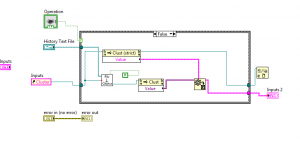
The first step in building this VI is to add a case structure. The case structure will execute the program built inside of it. There are two options true or false. To be able to run the true or false program a switch needs to be added. In this case the switch is used to either load a history file from a drive or the other option is to save the history file to a specific location. Then a file path is added so that a history file can be loaded. The first icon that is attached to the path is an open/create/replace file icon this either opens, creates or replaces the file that we insert into our program. I then insert two Write To Text icons. These icons takes strings and writes them as lines so that they can be converted to the file. Attached to one of the icons is a Close File icon which closes an opened file. Also attached is a cluster to string VI, This VI takes a cluster and then a string will be outputted. Attached to the other icon is a Concentrait sting icon, this icon takes many strings and creates it into one singe string. Attached to that is a constant and a end of the line constant. This end of the line constant consist of a constant string that has an end of the line value. The last icon that I inserted into the case structure is the property node icon. This reads our data and then sets the previous data. This node deals with our specific values that we want. Attached to that icon is a close reference which closes our RefNum and then an input which displays our values on the front panel. For the false case everything outside of the structure is the same. Inside the structure there are two property nodes which both connect to the variant to data icon. This icon converts the variant data to a data type that labview can read. The other icon that is included within the structure is the file to cluster VI takes a file path and creates a cluster and Off of that Icon there is a constant. Overall this program is much more complex than most of the others I have worked with so far. A picture of the VI is seen below.
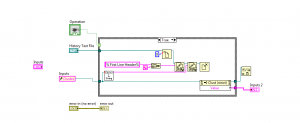
The above picture is the false case while the below picture is the true case.