
Monthly archives: June, 2017
Independent Study Final Project 2
Gytis Blinstrubas
6/11/17
Independent Study
Over this last spring term my independent study consisted of me learning how to code with a program called labview. This program is a vital aspect of the research I am continuing from last term. We need to use this program because when we get data from our samples we get it in two forms. When the data is taken at the Advanced Photon Source at Argonne national lab our data is in the form in an image. Currently the labview program is built to take this data and convert it to the proper graphs we need. However, we also use our in-house X-Ray Diffractometer. The data from the XRD and the APS will give us the same result except that the XRD gives us the data in the form of the image. To be able to process our data we use a program called pdfgetx2. This program is less user friendly and much older, than labview. We want to rebuild the labview program so that we can process our data faster and the same way as we do the data from the APS. The program that is used for the APS is very large and has many components. To be able to work on the program I will first need to learn the basics of labview. My first task was to learn how to install the program onto my drive so that I can work on it remotely from any computer. To complete this task, I copied the build code from a hard drive and then put the program into my F drive. I also had to make sure to include a lot of sub programs because when this large program runs it is dependent on a lot of smaller programs. After installing this program on my drive, it was also important to learn how to use the program and make sure that it works. I then had to learn how to input my data and manipulate the program so that I can do corrections and build programs myself. The first program that I built was a simple program. This program allows the user to input two numbers and then choose for the program to either add, subtract, multiply, or divide those two numbers. The program works by adding specific icons to a block diagram and then connecting the icons to create the final code which function properly. On the front diagram three boxes are displayed, where two of the boxes are for inputting the numbers and the third box shows your final answer. After creating this simple program and learning the basic skills to be able to create VI’s, I then started to learn specific code that would help me in recreating the program we use for Argonne. The first code I built was a VI that could input excel files and create a graph from those files. My first step in creating this code was inserting two read delimited icons on the block diagram. Two icons are needed since one will read the data for the X axis while one will read it for the Y. The reason why I need these icons specifically is that they are able to read 2d arrays of scalar numbers. When importing my files, they will need to be converted to comma delimited files in order for labview to read this data. Off of the read delimited file a constant needs to be added, our constant in this case is the comma since we are importing the comma delimited files. The next step I took is to insert an express VI called “Build XY Graph”. This is used since an express VI has many applications and is more user friendly than a normal VI. For our case we need this express VI because it converts our raw data into graph form. The last step is to add a xy graph icon so that our graph can be seen on the front diagram. This icon will be connected to the express VI. An example of the code can be seen below.
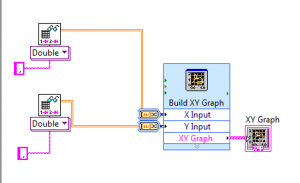
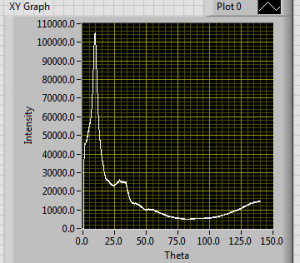
The icons and the constant can be seen to the left, where the constants are the pink boxes with a comma. With the yellow wire, each icon is either attached to the x or y input. Lastly the xy graph icon is attached to the build xy graph icon in order for the program to display the data in a graph form.. An intensity versus theta graph of an empty 2mm capillary can be seen below.
After creating a program to be able to insert text files, my next task was to create a program that could display images. The process of inserting a picture into labview is not overly complicated. The first icon that is needed is a read JPEG file. The purpose of this is that it takes the image and converts it into data that labview can read. Then connected to this icon is another icon called Draw Flattened Pixel map. This is used to create the picture. Finally, a picture icon is added. This icon takes our picture from before and displays it on the front diagram. After inserting the image, my final task was to take my image and display it on an intensity graph. With my research partner Sven Marnauzs we built a code that could accomplish this task. The first icon that was put in was a file path, this is done so that we can insert our saved image. Then the read JPEG file and the Draw Flattened Pixel map icons are inserted. After that, a picture to pix map icon is inserted and a constant is added to the icon to tell how many bits the picture is. The next icon added is an unflattened pixmap. This icon unflattens the data from the Draw Flattened Pixel map icon. The last icon added is the intensity graph, so that our image can be seen on the front panel. An example of the code can be seen below.
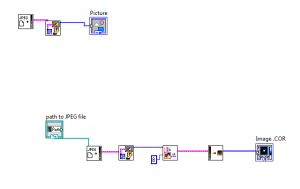
The top codes task is to insert an image, while the bottom code is used to insert an image to an intensity graph.
Over this last term my independent study consisted of me starting to learn labview so that over the summer I can rework the APS program to read data taken from our in house XRD. Currently, I am building a program that will allow me to insert history files into labview and be able to extract certain parameters from that file. My work from the independent study conducted during winter and fall term will continue over the summer.
Editing the Load History File VI
After creating the load history file VI I then inserted a history file made from the LabView program. I ran the program and could view the parameters of that history file. My next task was to modify this program to accept pdfgetx2 data and to change the front diagram to show the information I want from the pdfgetx2 history file. The first thing that I had to learn was how to edit the front panel. This panel is made up of all clusters, and the way that he current VI is built there are two of the same clusters that need to each match each other.
The clusters itself are made up of smaller clusters. To be able to edit certain parameters within the cluster, I need to find that cluster saved within the X Ray Batch folder. Then I can edit those clusters and copy them to my load history file VI. When I delete the old cluster and replace it with the new edited one I need to make sure that both main clusters have the same elements. If I do not do this then this VI will not run and load my history file. To run the Pdfgetx2 history file the block diagram will not have to be changed at all, what will need to be reworked is the front panel and potentially the format of the file. Also all new clusters will have to be made so that the history file from the pdfgetx2 program can work.
Learning the “Load History File” Sub VI
The current VI I made is like one I found already built. The reason why I did this was so to learn how to build a Vi that can import history files, learn how this specific VI works, and find certain parameters. The pre built VI that I found was in the folder
-Research
-LabView Program
-Everything
-BESL LabView Analysis 2014
-X-Ray Analysis
-Xray Batch SubVIs
-SaveLoad VIs
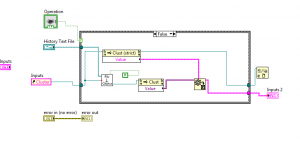
The first step in building this VI is to add a case structure. The case structure will execute the program built inside of it. There are two options true or false. To be able to run the true or false program a switch needs to be added. In this case the switch is used to either load a history file from a drive or the other option is to save the history file to a specific location. Then a file path is added so that a history file can be loaded. The first icon that is attached to the path is an open/create/replace file icon this either opens, creates or replaces the file that we insert into our program. I then insert two Write To Text icons. These icons takes strings and writes them as lines so that they can be converted to the file. Attached to one of the icons is a Close File icon which closes an opened file. Also attached is a cluster to string VI, This VI takes a cluster and then a string will be outputted. Attached to the other icon is a Concentrait sting icon, this icon takes many strings and creates it into one singe string. Attached to that is a constant and a end of the line constant. This end of the line constant consist of a constant string that has an end of the line value. The last icon that I inserted into the case structure is the property node icon. This reads our data and then sets the previous data. This node deals with our specific values that we want. Attached to that icon is a close reference which closes our RefNum and then an input which displays our values on the front panel. For the false case everything outside of the structure is the same. Inside the structure there are two property nodes which both connect to the variant to data icon. This icon converts the variant data to a data type that labview can read. The other icon that is included within the structure is the file to cluster VI takes a file path and creates a cluster and Off of that Icon there is a constant. Overall this program is much more complex than most of the others I have worked with so far. A picture of the VI is seen below.
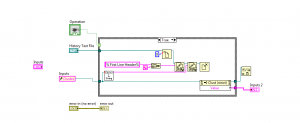
The above picture is the false case while the below picture is the true case.
Creating a Program to Switch Data Types
The first step in creating a program to switch between two different data types is to create two case structures. Inside these structures there are sub diagrams. The purpose of the case structure is to determine which diagram will
execute when the program is ran. Then I added a switch to tell which program to execute. The two programs I added were to insert an image and to insert an excel file which gives me a graph. The displays for the VI’s need to be outside of the case structure. For my case it is the xy graph icon and the picture icon. It is also important to note that I want the structure to only run when the switch is in the true position. To accomplish this I can only create a VI when the case structure says true, and since I do not have a VI when the case structure says false I need to use the default if not wired between the display icon and the case structure. Also note these VI’s were built before this program was built. A picture of the program can be seen below.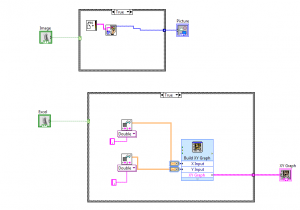
The top program is to insert an image on the front panel. On the left the switch can be seen. While the VI is inside of the case diagram. The bottom program is to insert an excel file and display a graph on the front panel.